A place for your next action
How to use your MacBook notch for productivity.
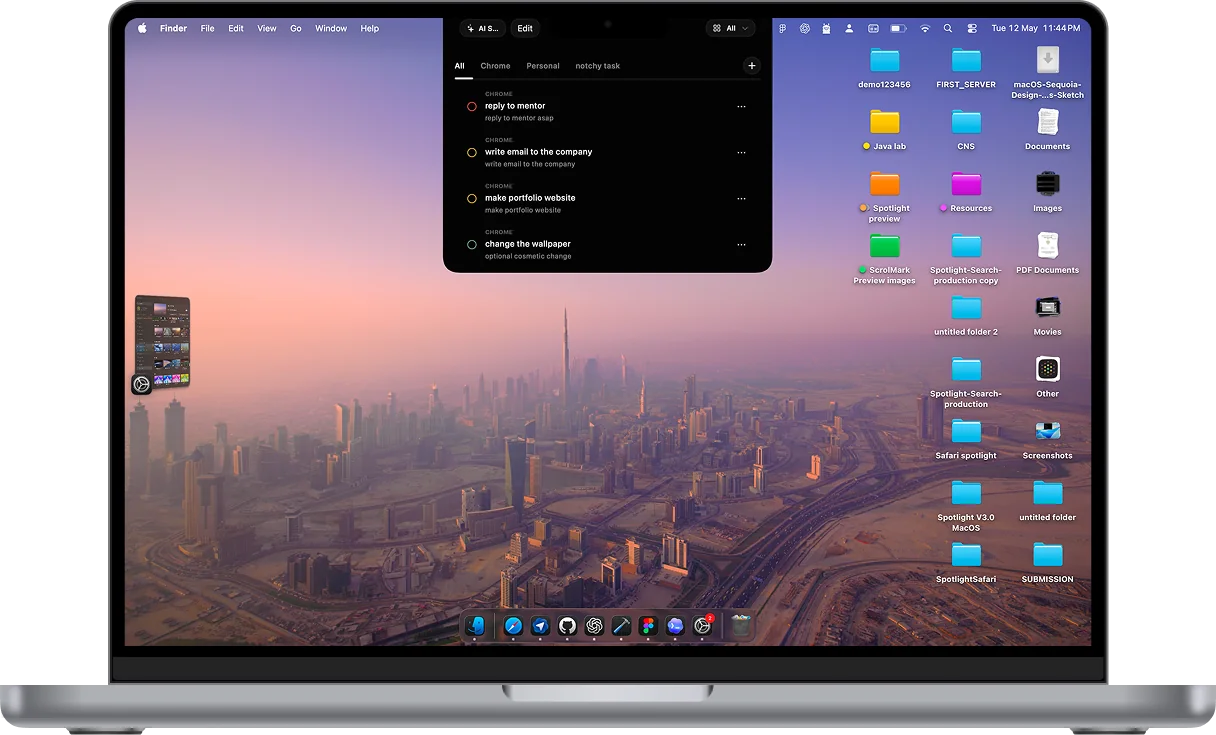
A notch productivity app puts a small workspace at the top of your Mac screen. NotchyTask uses that space for a to-do list: hover to open it, capture what is on your mind, and return to the task in front of you.
Check your Mac before you start
NotchyTask requires macOS 26 or later. On your Mac, open the Apple menu and choose About This Mac to check your macOS version. A physical notch is optional: the app also provides a top-of-screen overlay on displays without one.
For AI Sort, you need an Apple Intelligence-capable Mac with Apple Intelligence enabled and its on-device models ready. If those requirements are not met, you can still add, complete, and manually reorder tasks. See Apple’s current Apple Intelligence requirements for availability and setup.
You can download the installer and complete onboarding before purchase. The main app requires a paid license: $14.99 USD once for 2 Macs, with updates included. There is no free trial. Purchase and activation require internet access.
Build a simple notch task workflow
1. Install, complete onboarding, and activate
Download NotchyTask for Mac, open the downloaded archive, and move the app to Applications. Launch it and follow onboarding. After purchase, save the license key shown on the confirmation page and enter it in the app to unlock your workspace.
2. Capture a concrete next action
Move your pointer to the notch area to expand the panel, then enter a task. Use wording that makes the action clear: “Email the revised proposal to Sam” is easier to act on than “Proposal.” When you move away, the panel can collapse so your work remains in view.
3. Separate contexts with sections
Create sections for the kinds of tasks you actually switch between, such as Work, Personal, and Side Project. Begin with a few useful groups. A list with one clear purpose is easier to scan than a collection of categories you need to maintain.
4. Give AI sorting useful context
In a section’s priority instructions, describe what matters. For a work list, an example is: “Prioritize client commitments and tasks blocking someone else before optional polish.” This is a suggested starting point; adapt it to your work.
Use AI Sort when you want a suggested order, then read the High, Medium, and Low priorities and their short reasons. The model uses the task text and section context. Include meaningful deadlines in your task wording and review the output; a suggestion is not a guarantee that every priority is correct.
5. Finish, reorder, and return to work
Mark tasks complete as you finish them. Use manual ordering whenever you already know what comes next. Keep the list focused on actions you can take, and revisit it when your priorities change rather than continuously reorganizing it.
What stays local, and what needs a connection?
The task list is stored on your Mac, and AI prioritization runs using Apple’s on-device Foundation Models. Task text is not sent to a cloud AI service for sorting. Checkout and license activation are separate online steps.
Local storage also means there is no task sync between Macs and no phone or web client. A license for 2 Macs activates the app on both; each keeps its own list. If you need shared lists or reminders on your iPhone, compare other Mac to-do apps before choosing.
When a notch task manager makes sense
This workflow is a good fit when most of your tasks happen at your Mac and you want quick capture without keeping a separate task window open. It is especially useful as a small list of current actions while you write, develop, study, or design.
Choose by the job you want the notch to do. NotchyTask focuses on tasks and priorities; it does not provide media controls, a file shelf, a calendar planner, or a shared team workspace.
Give your notch a useful job.
See NotchyTask in action, check your Mac’s compatibility, and bring your next tasks closer to your work.
Buy NotchyTask — $14.99 once2 Macs · Lifetime updates · Requirements & purchase questions